Manage Template - OnSend
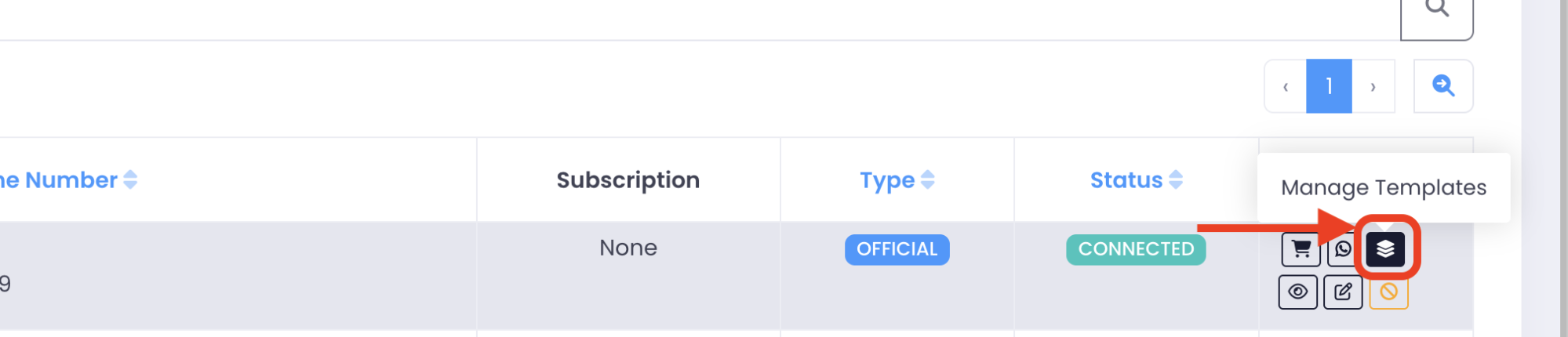
In "Device" tab, click on "Manage Templates" button.
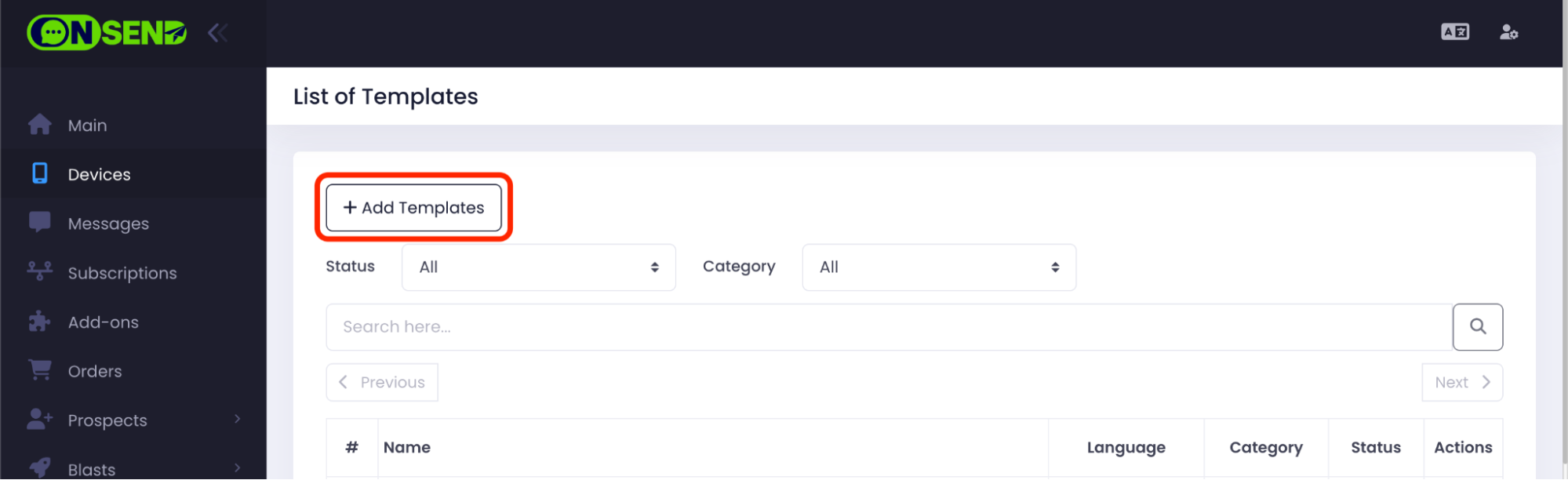
Click on "Add Templates" button.
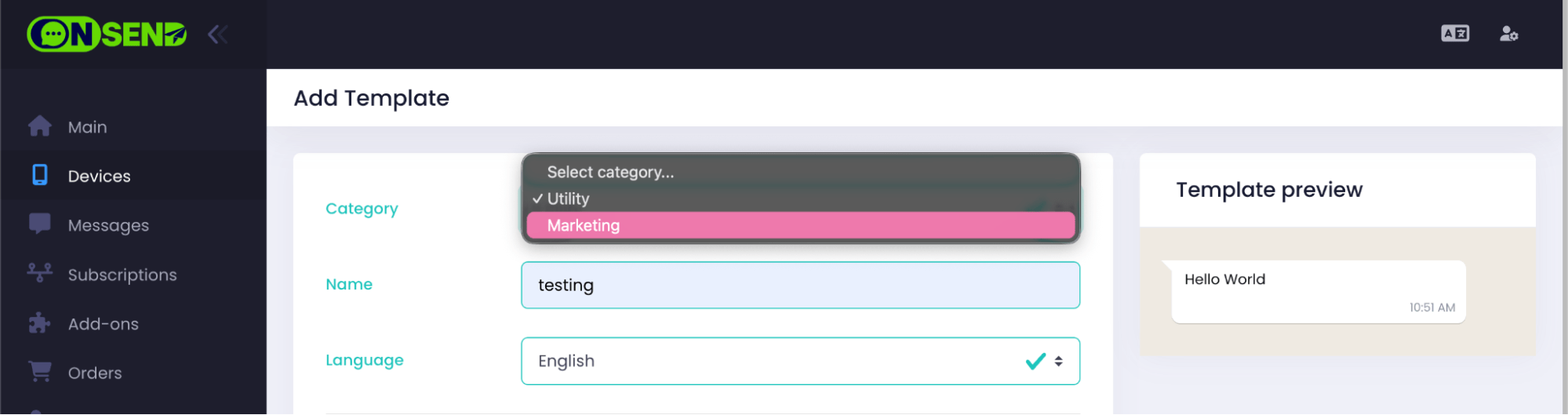
Fill in the template details.
Choose your category:
Utility: Non-promotional, transactional updates (order status, OTP).
Marketing: Promotion, offer discounts, re-engage customers.Enter template "Name".
Choose "Language".
Choose type of variables: "Number" or "Name(Text)".

Choose "Media Sample".
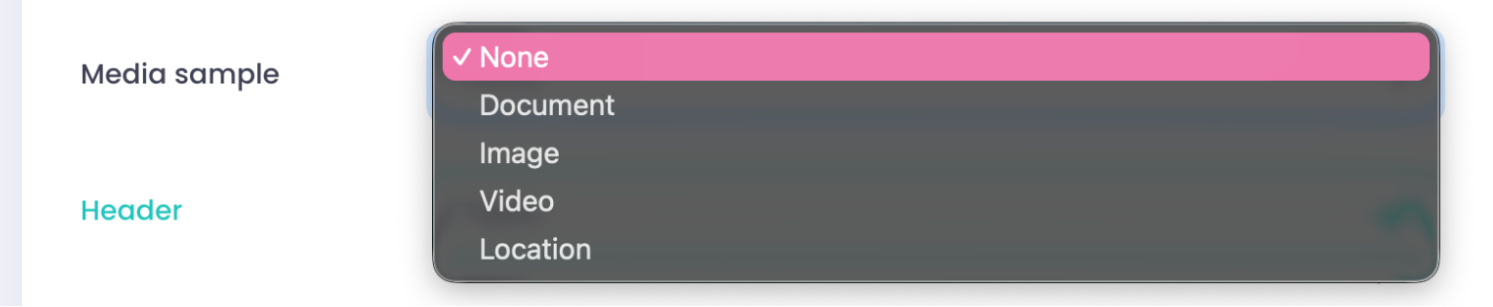
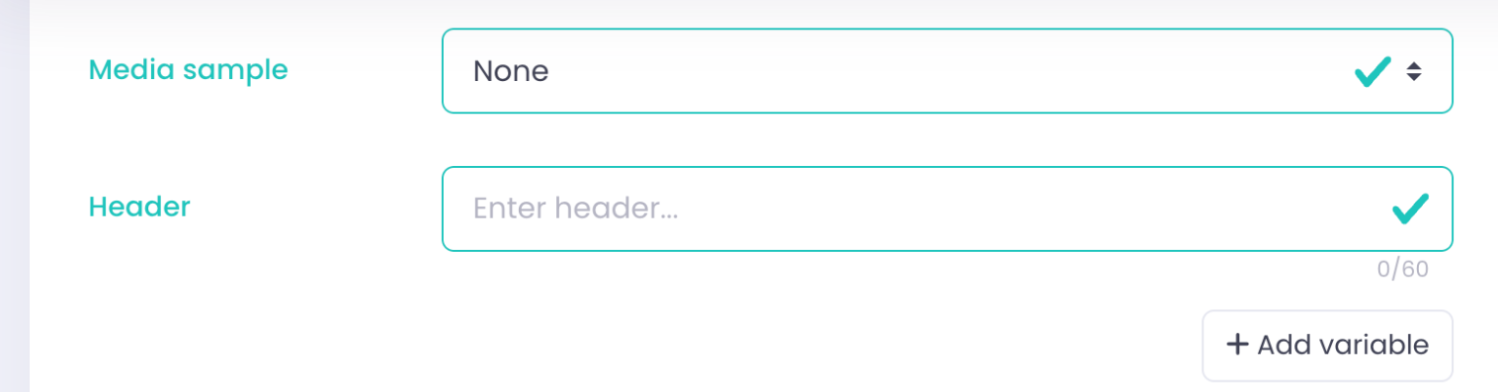
- If you choose "None", you can enter "Header".
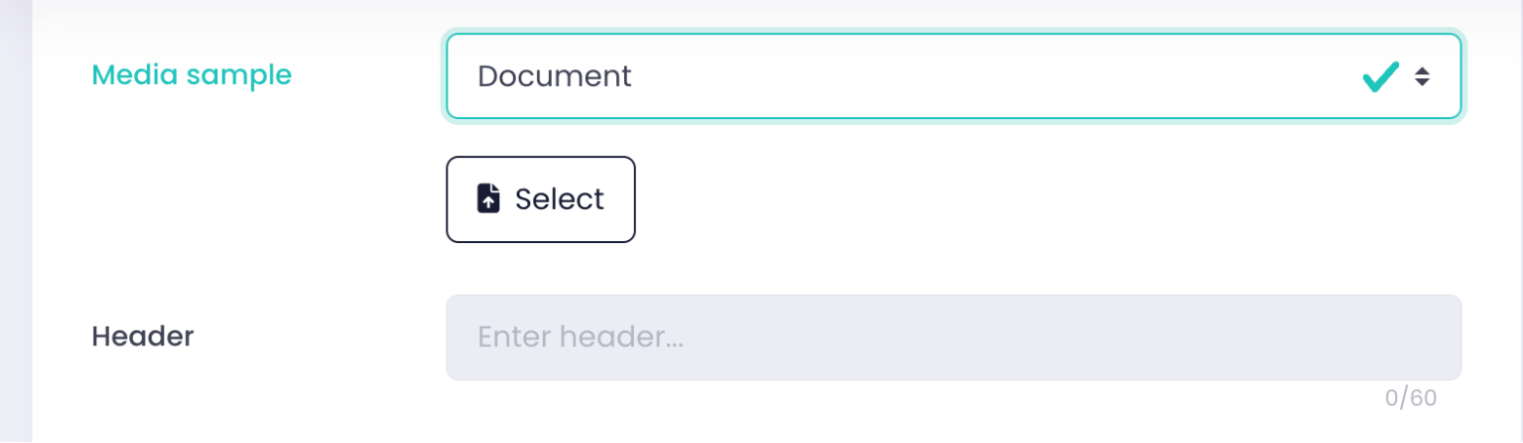
- If you choose others, you will not be able to enter "Header".
Enter "Header". You may add 1 variable only.

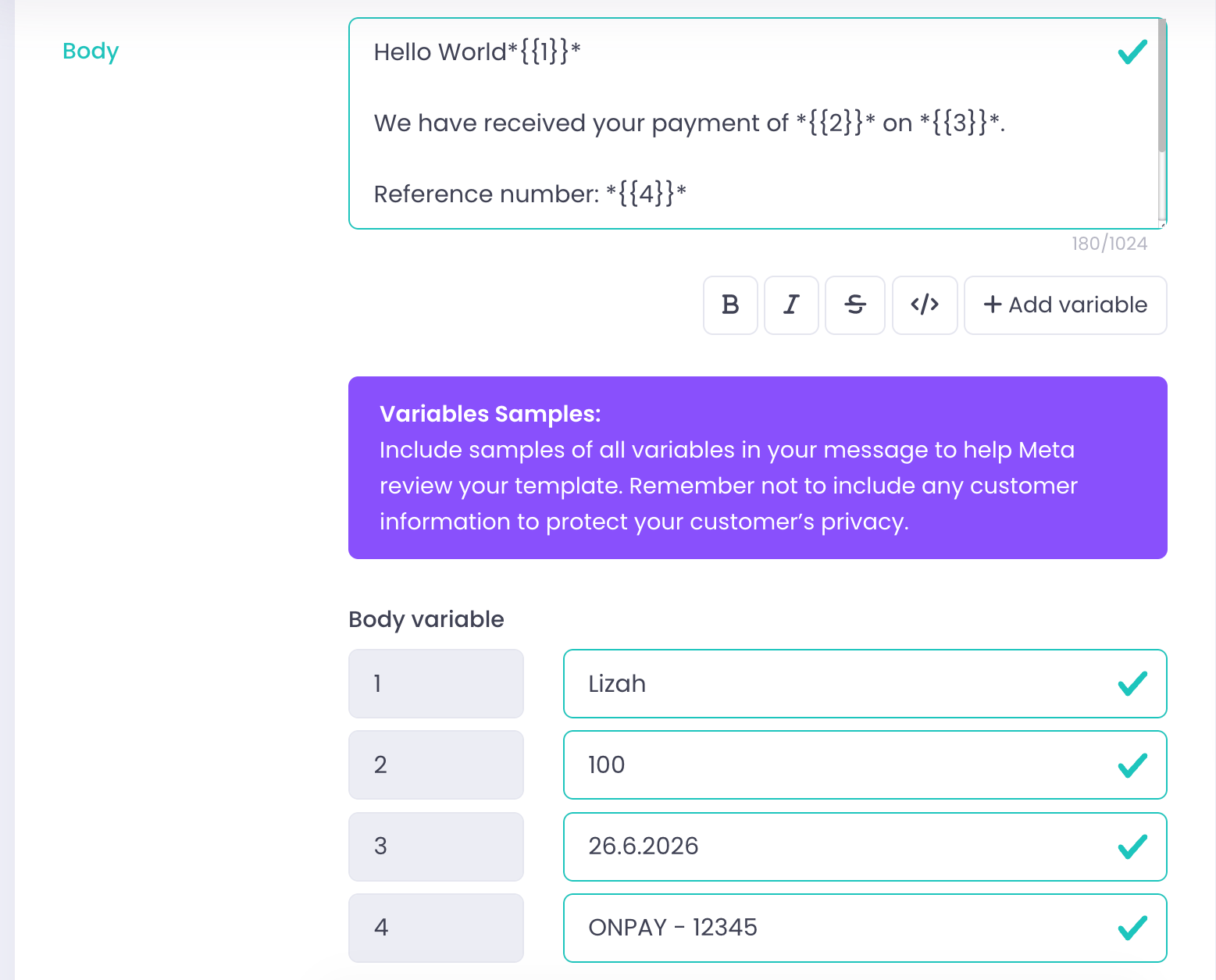
Enter "Body". You may add more than 1 variable.
Enter "Footer". No variable can be added.

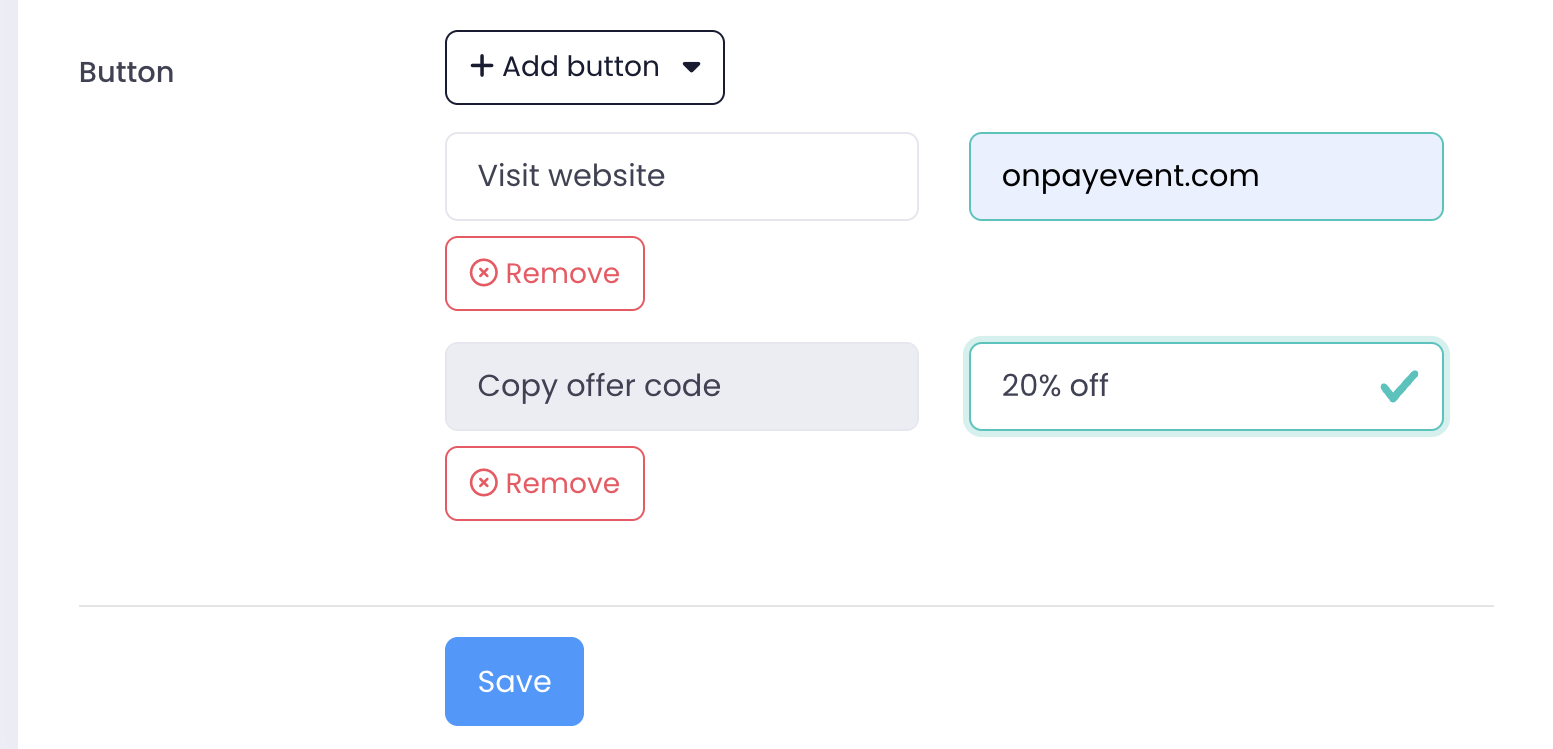
Add "Button" if needed. Then click "Save".
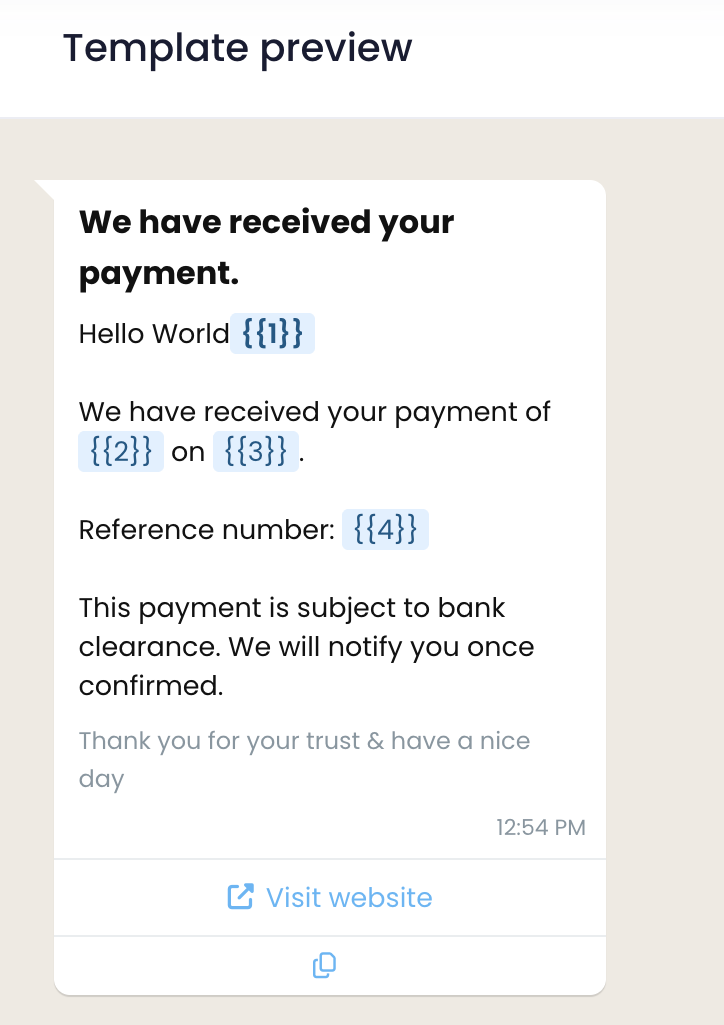
Example of template review for OnSend: